- Limitless Creator
- Posts
- From Data to Dollars: AI Shortcuts You Seriously Need
From Data to Dollars: AI Shortcuts You Seriously Need

Jessica Camilleri
April 22, 2025
You know I’m all about quick wins, so here’s the TL;DR of what blew my mind this week (and what’s inside this email):
In today’s issue
• Canva’s brand‑new AI features that turn boring data into share‑worthy graphics in <5 min (+ supercharge your workflows with anything design-related).
• The 10‑minute Trend‑Hijack tactic I used to rocket this list past 1,200 subscribers.
• A ChatGPT prompt that found (and helped me cancel) £47 of zombie subscriptions from my bank account.
Grab a coffee, scroll fast, and steal whatever you need…
Here are few ways I’ve been using AI in my business this week…
Last week Canva released a whole slew of incredible new features. Here are some of my favourites that I’ve been playing around with:
Canva Sheets → instant visual dashboards

Why it rocks
Sheets is a spreadsheet that lives inside Canva and talks to every design type. You can turn raw numbers into branded charts, infographics or slide decks without leaving the file.
Your quick win
Paste your KPIs or email list stats into a Sheet.
Click Convert → Chart and choose a template—all colours/fonts auto‑match your brand kit.
Drop the finished chart straight into a deck or social graphic.
Result: a share‑worthy metrics dashboard in <5 minutes, with zero Excel sweat.
Visual Suite 2.0 → “One Design” workspace

Why it rocks
Each page in a single file can now be a totally different size: carousel, reel, blog banner, even a web page. So an entire campaign lives in one doc and edits sync everywhere!
Your quick win
Create a new “Visual Suite” doc → start with your sales‑page hero (web page size).
Add a TikTok clip (1080×1920) + an email header (1200×600) as new pages.
Update the headline once—watch it update across every asset.
Launch day = done in one tab, not ten.
Magic Design for Websites & Carousels

Why it rocks
Type a prompt or paste your copy, and Canva’s AI builds a multi‑page website or swipe‑worthy carousel - layouts, imagery and on‑brand colours included.
Your quick win
Click Magic Design → Website. Paste your offer outline.
Choose a vibe (bold/minimal/playful). AI generates a live site—swap images, hit Publish (Canva hosts it).
Repeat with Magic Design → Carousel to auto‑create a 10‑slide teaser for Instagram.
One prompt = sales page + social promo in under ten minutes.
Let dive into your business prompt for this week…
Trend‑Hijack Product Spin‑Up
Over the last few weeks I’ve grown this newsletter to over 1,200 subscribers, mostly thanks to a “Generate Your ChatGPT Barbie Prompt” lead magnet that I created. The trend was hot so all the videos I created talking about it and encouraging people to sign up blew up on my social media accounts. Trend‑led lead magnets (or micro‑products) can be an amazing way to boost your traffic, even if just for a short period of time.
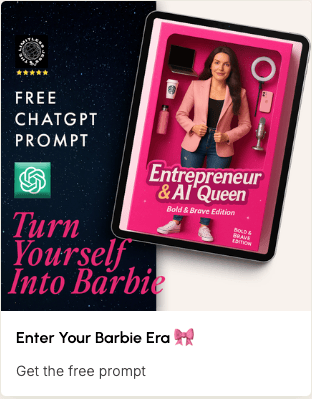
Here’s a streamlined way to spin any fresh trend into a sign‑up magnet in under 10 minutes:
Capture the trend
Spot a Reel/TikTok that’s blowing up. Copy the URL link of the video and paste it into a website like Tokscript, which gives you a written script of the video from the URL.
Use this prompt for ideas:
Analyze the content and audience of this trend.

• List 3 high‑value lead magnet or micro‑product ideas I could create within 24 h.

• For your top pick, write:
– Title
– 1‑sentence hook
– Simple 3‑step creation plan
– 5‑slide carousel outline to promote it
The secret is to hop on the trend quickly, without overthinking. Use Canva’s new AI features to create an MVP of your lead magnet/product, get it out there asap and start creating content to promote it.
And now for your personal prompt of the week…
Subscription Audit & Cancel Script
Those sneaky “free‑trial‑turned‑£19.99” charges add up fast. Here’s a 5‑minute tutorial to slash the money you might be wasting on unnecessary subscriptions:
1. Export your data
Log in to your online banking ➜ download the last 3 months as CSV.
2. Upload to ChatGPT
In GPT‑4o, drag‑and‑drop the CSV.
Copy-paste this prompt:
You’re my money‑saving assistant.

Task:
1. Read the CSV and list every recurring subscription (merchant, amount, frequency).
2. Sum total monthly cost.
3. Rank each subscription as “essential” or “nice‑to‑have” based on common sense (streaming = nice‑to‑have, phone bill = essential).
4. For the 3 lowest‑priority items, draft polite cancellation emails including:
   • account details placeholder
   • request for confirmation of cancellation
   • reference to Consumer Contracts Regulations (UK) / relevant law

Return the list + emails in a clear format.
For most subscriptions you might not need to send an email - you’ll probably be able to just cancel your account from your settings or the company’s website.
But this is a great way to audit what subscription you’re spending your money on and cut the ones you really don’t need.
I hope you enjoyed this edition of the newsletter - there’s a quick poll at the bottom of this email - I would love to know what you thought of it so that I can keep sending you even better emails 🥰.
See you next week,
Jess xo
When you’re ready…
Let’s create your first or next digital product and get it selling in 24 hours with AI and my foolproof 9-step system inside my First Sale Fast challenge.
What did you think of this issue? |